Installing Palm uFile and uFile Conduitv1.00
System requirements
Handheld device
- Symbol SPT 1800 handheld device running PalmOS v4.0 or v4.1 with integrated barcode scanner.
- Serial charge cradle.
Desktop PC
- A PC with
- Intel® Pentium II or newer Processor.
- Microsoft Windows 98/XP/2000.
- Microsoft Windows Installer. You can download it free from Microsoft web site, for Windows 98/ME and for Windows NT 4.0/2000.
- Microsoft Internet Explorer 5.5 or above.
- A serial port to connect the cradle.
- Connection to the Internet.
Palm uFile
This application will be installed in the handheld device. Messengers will collect data
using this application.
uFile Conduit
This is a software component that will be installed in the desktop PC and work within HotSync application.
It will transfer collected data from the handheld device and upload information to the uFile server.
How to install
Step 1 - Connect your handheld
- Follow the instructions in manuals provided with the handheld device to connect it to the PC using the serial cradle.
- Leave the device in the cradle until installation is complete.
Step 2 - Install Palm Desktop
- Download the latest version of Palm Desktop software for Windows from
http://www-5.palmone.com/uk/en/support/win_desktop.html
- Run the installer, and accept all default options.
- When the software is installed, follow instructions and sync the handheld device for the first time.
- If the device was not synced before, it will prompt for a user name. Enter a suitable user name.
Step 3 - Install Palm uFile and uFile Conduit
- Unzip PalmuFileInstaller.zip into a temporary directory and run Setup.msi from there.
- Accept all default options.
- On successful install it will display HotSync's Custom dialog.
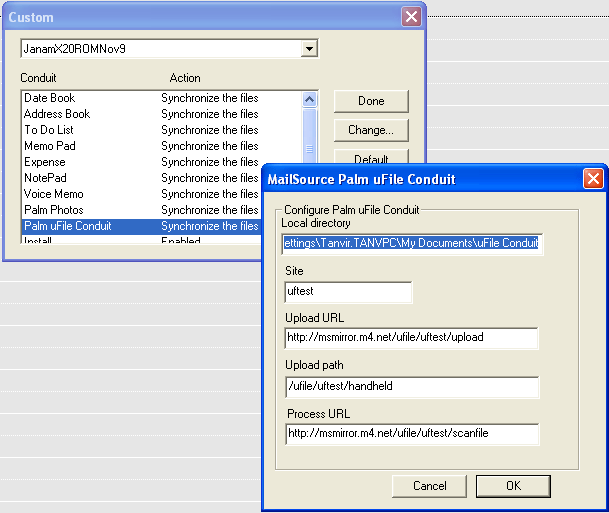
- Select Palm uFile Conduit and click Change....
- Set local directory, uFile site name, upload URL, Upload path and process URL.
- For testing, set http://msmirror.m4.net/ufile/<site-code>/upload as the Upload URL and for live sites set http://ron.m4.net/ufile/<site-code>/upload
- Set /ufile/<site-code>/handheld as the Upload path
- For testing, set http://msmirror.m4.net/ufile/<site-code>/scanfile as the Process URL and for live sites set http://ron.m4.net/ufile/<site-code>/scanfile
- Close the Custom dialog.
- When prompted, run HotSync.
- Note that, this software needs to be installed only once in a PC, regardless the number of different handheld devices used with that.
- Later, to install this software into another handheld device
- Place the device in the cradle.
- Run Start menu --> (All) Programs --> MailSource --> Install Palm uFile on Handheld.
- Run HotSync.
Configuration
Palm uFile
- Take the handheld off the cradle.
- Run Palm uFile in there.
- Login using your ID card.
- Tap on the Menu icon and go to "Setup-->Configure" and set the uFile site name and the email address.
- Save configuration.
- Tap on the Menu icon and go to "Setup-->Events", few events should be listed in the screen.
- Quit the application.
uFile Conduit
- Click the HotSync icon the system tray (in bottom right corner of your screen).
- Click Custom... menu.
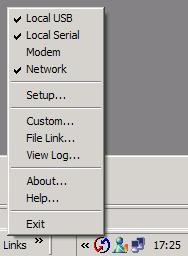
- Select Palm uFile Conduit and click Change....
- Set local directory, uFile site name, upload URL, Upload path and process URL.
- For testing, set http://msmirror.m4.net/ufile/<site-code>/upload as the Upload URL and for live sites set http://ron.m4.net/ufile/<site-code>/upload
- Set /ufile/<site-code>/handheld as the Upload path
- For testing, set http://msmirror.m4.net/ufile/<site-code>/scanfile as the Process URL and for live sites set http://ron.m4.net/ufile/<site-code>/scanfile
- Close the Custom dialog.
Status report
- Click the HotSync icon the system tray (in bottom right corner of your screen).
- Click View Log... menu.
- The conduit resports status in the log window.
Help
- Call Metafour support on 0207912011
All trademarks mentioned in the page belong to their respective owners.